Pages

Showing posts with label Tips Notebook. Show all posts

HP Compaq 8710w User Review

The HP Compaq 8710w is HP's top of the line premium mobile workstation featuring some of the highest specifications currently available in the market, including options for a full-HD screen, Penryn processors and the most powerful professional graphics card solution for notebooks.

Reasons for Buying

After owning an 8510w, I realized that a 15.4" notebook, while striking a good balance, isn't exactly a true desktop replacement. I wanted a true desktop replacement machine that has excellent graphics capability, a large and beautiful screen, fast processor and comfortable keyboard. I seriously considered Dell's XPS M1730, which is a popular option, but I decided that I value an understated, professional look as well as docking station support more than the SLI graphics capabilities and dual drive configuration that the XPS offers. It is also a much lighter and portable notebook than the XPS and I like being able to take the notebook with me on the occasional trip. The Precision M6300 was not an option for me as for approximately the same price, it offered less features and has an arguably less desirable design carried over from the previous generation Inspiron notebooks.

Specifications

The 8710w is configurable with a host of processors, hard disk, RAM, optical drives (DVD/BluRay) and graphics card (Quadro FX 1600M/3600M). A BluRay drive is an additional $500 option and the Quadro FX 3600M graphics card adds approximately $600 to the configuration depending on the region. In Asia-Pacific markets, the T9500 option costs an additional $400.

I try to strike a balance by selecting a configuration that best optimizes the price-performance ratio, resulting in the following specifications:

* Intel Core 2 Duo T9300 Processor (Penryn)
* Genuine Microsoft Windows Vista Business (Office 07 Ready)
* 17" WUXGA Wide-Viewing Angle Display (1920x1200)
* 512MB Dedicated Nvidia Quadro FX 3600M GPU
* 2GB DDR2 667MHz RAM (+2GB self upgrade)
* 200GB Hitachi 7K200 Hard Disk
* DVD+/-RW LightScribe Optical Drive
* Intel 802.11a/b/g/n Wifi Module
* Intel Gigabit PRO 1000 NIC
* Bluetooth 2.0+ Module
* Dual pointing Devices Keyboard
* Fingerprint Reader Module
* 8-cell Battery
* 135W Hardware Kit
* 3-Year Global Next Business Day Parts and Labor OnSite Warranty (3/3/3)

Getting A Great Refurbished Laptop

Are you sick of all the high priced notebooks out there? Does getting a used laptop seem like a better choice to you? Refurbished laptops are everywhere these days, and the word itself seems like a “buzz word” of the industry. But do these used machines actually hold up to the strict standard of the word “refurbished”?

In this article I will discuss exactly what process a used notebook should go through before it is called “refurbished”, as well as the advantages and disadvantages purchasing one brings.

Ok, so you see refurbished or recertified laptops being touted everywhere online these days, but are they all the same? The answer is no. Each company has a different process of restoring a notebook, and they aren’t all equal. This is what a good restoration process should look like:

- An examination of all hardware components

- Diagnostic and performance test

- Cleanup

- Cut & scratch repair (not always necessary)

What this process should equate to is a machine that runs just as good as when it was brand new, (and sometimes look just as good). The most important thing you can do if you are looking at a particular “recertified” laptop is find out about the company selling it. Are they reputable? How long have they been in business? What process do their refurbished laptops go through?

These are the most important questions you must ask. I’ll be honest here; there are many companies that claim that their notebooks are recertified, but this is really a lie. There is a risk involved when buying a reconditioned notebook, and checking a company out before you purchase can go a long way towards your peace of mind. That being said, good deals and quality notebooks can be found, and are found daily.

Before I conclude this article I would like to go over a few of the advantages and disadvantages buying a refurbished notebook can bring. For one, the obvious advantage is that you can save a lot of money on a mobile PC that runs just as good as ever -- as long as the laptop is of good quality. This is the advantage that appeals to everybody when it comes to getting a reconditioned laptop.

As for disadvantages? Well, as I said above, there is a risk when purchasing these notebooks. By doing proper research you can minimize this risk, but it will always be there. Another down side to these machines is that you are limited to whatever is available. With a new notebook your options are endless –- With a refurbished one, you have to take what you can get.

All in all, I think buying a refurbished laptop can be a great idea; provided you take the time to ask questions such as the ones above. If done correctly, you can get a great portable PC that will last you a long time to come, and save you a lot of cash as well.

Five sexiest laptops

What makes a sexy laptop? Is it sleek portability? A pattern which catches the eye as well as the heart? A design that is as avant-garde as any fashion accessory? A notebook which, when flashed, gets you into any club and lets you walk out with the girl of your dreams (or at least for the night)? If you answered yes to all the above, give yourself an A--for incredible optimism.

Though none of these sexy numbers come cheap (with the exception of the HP Compaq 2133), most likely, the only thing you are going to get is a second glance for having an unusual laptop in your hands. Colors are so last season, with the latest and most desirable going the extra mile by being the slimmest or having a unique patterned design. We took a look at what's available in the market and give you five good reasons why you should drool-protect your keyboard before reading on.

MacBook Air
What the ASUS Eee PC did for price, the MacBook Air did for design. By working with Intel to create a new class of low-profile processors, Apple unleashed an impossibly slim laptop which wowed the world when it was first unveiled coming out of a manila envelope.

Yes, we know about the ridiculous compromises in features. We have also heard of the USB port which defies all but a standard-sized USB connector. But they all fly from the mind when one sets eyes on the sleek aluminum chassis. If there was ever a zen laptop, then the MacBook Air is about as close as you can get. Don't take our word for it. When the competition starts touting words like MacBook Air killer, Apple knew it had a winner.

HP Compaq 2133
Imagine the MacBook Air, make it shorter and thicker and you would probably end up with the HP Compaq 2133, or better known as the HP Mini-Note. The first sub-12-inch laptop from the US maker, the metal body has no visible screws or panels to spoil its aesthetic appeal.

We're not sure if looks were the original intent, though, as HP claims that the design was aimed at making the unit tamper-proof (i.e. no user upgrades allowed). Nonetheless, we love the acrylic-reinforced LCD and large keyboard, which makes it one of the few mini-notebooks that won't give finger cramps from typing anything longer than an email.

LG P300
This one's for the gamers. For too long we have been marginalized and forced to choose between sleek portability or gaming prowess when it came to laptops and, by jove, we've had enough. Fortunately, before we go up in arms outside PC manufacturers' headquarters demanding action, the LG P300 came and saved the day.

With similar dimensions to the ThinkPad X300, the P300 doesn't include an optical drive. Instead, it holds a gaming-grade Nvidia GeForce 8600M GS which is competent enough to play even the resource-intensive Crysis, as long as one is not too fussy about high resolutions and textures. It helps that the purple tiger stripe design on the top cover is especially eye-catching, though the jury is still out as to whether the look is a little too loud.

IdeaPad U110
Lenovo has come a long way since the boxy Bento-like ThinkPads. The IdeaPad range is a consumer-class lineup that aims to please the eye, which the latest U110 fits the bill perfectly. The 11.1-inch laptop comes in a choice of black or red which has a vine-patterned texture on its top cover which makes it look like an intricate work of art.

But looks is not its only forte. Lenovo has tried to pack as many features as possible under the hood. From the bezel-less screen to its 5.1-channel audio system and face-recognition Webcam, this is one laptop which seeks to impress from all angles. Granted, the battery life with the four-cell is a mere 2 hours, but fortunately there are extended battery options available.

Sony VAIO TZ series
A lot of thought was put into the design of Sony's TZ series. From the slim, LED-backlit screen to the tilt of the keyboard, the Japanese company did all it could to ensure that this laptop is not only a pleasure to behold, but a joy to use.

Available in several colors as well as a choice of Solid State Drives, this 11.1-inch number is one of the few which didn't sacrifice features or usability in its bid for portability. The keyboard keys are similar to those on the MacBook, which makes it easy to type on. It also has excellent battery life even with the standard cell, while the extended battery actually lifts the unit from the rear and gives it a nice tilt. Though some have reported that the build quality could be a little more solid, we feel that for the frequent traveler this is almost a must-have accessory to carry around.

Lab Notebook Tips

Need for Notebook

A lab notebook provides evidence of an inventor’s conception of an invention and the steps taken to reduce the invention to practice. It becomes a permanent record of the date of invention, which can be invaluable in patent contests.

What to Include

Detail is critical. Record:

  • When the idea was formed, and whose idea it was
  • The problem the idea solves
  • A description of how the idea can be implemented
  • Objective and rationale of any experiment conducted
  • Purpose of experiment or test
  • What was done, when it was done, and who did it
  • Results (positive or negative)
  • Conclusions drawn
  • Plans for future experiments, with protocols
  • Key to abbreviations and special terms used-in context, in a table, or in a glossary
  • Related activities such as conferences and creation of test equipment
  • Lab meeting discussions-with record of who made what suggestions
  • Descriptions of tests, including
o test results and explanation
o preferred operating conditions
o control conditions
o operable and preferred ranges of conditions
o alternate specific materials
o photographs or sketches of the results or the test device
o raw data from recording instruments
o drawings
o charts
o computer printouts
o any other supporting data
o references to any document too large to include in notebook, e.g., engineering drawings. Include number, title, date, and short description of what it depicts.

Include only factual data. Avoid opinion or speculation about the usefulness, quality, etc. of the invention or the research project.

How to Manage Your Notebook

  • Use a bound book. If loose sheets are used, number them consecutively, then date and sign each page, and have each page witnessed.
  • Keep your notebook intact. Don’t remove pages or affixed material.
  • Make entries in chronological order-on the same day as the event. If this is impossible, enter the information and indicate when the actual work was done.
  • Use ink to avoid any question about alteration and to prevent tampering.
  • Use pages in consecutive order, and try not to leave empty spaces. If you do leave empty space, draw cross-diagonal lines through the blank area and date it.
  • Don’t modify previous entries later. If a new drawing or new data is required, it should be entered under a new date and cross-referenced to the earlier entry.
  • Make entries directly in your notebook; don’t make notes on scraps of paper to be recopied.
  • Sign and date every page as completed (see below for more on signatures).
  • Indicate the name of the person working with you in connection with each entry. If someone else makes an entry in the notebook, he or she should date and sign the entry.
  • Permanently affix items such as photos, small drawings, computer printouts, etc. Sign and date the attached materials so your signature crosses both the affixed item and the notebook page.
Signatures in the Notebook
  • Sign and date each entry in the notebook, using the complete date, including the year. On the inside front cover of the notebook, sign and enter the beginning date of the notebook.
  • All the contributors should sign joint work. The text should establish who is responsible for each aspect.
  • Following the description and illustration of an idea in the notebook, a witness who will not be named as a co-inventor and who is not working on the project should sign and date the entry. A statement similar to the following should precede the signature: “Read and understood.
  • The first reduction to practice should be demonstrated to an independent witness, and he or she should sign and date a statement similar to the following: “Performance observed and understood
  • The witness should sign and date the entries as soon as possible, preferably the same day, but they can be reviewed and acknowledged on a periodic basis.
Storing the Lab Notebook
  • Keep notebooks in a central location while not in use-preferably in a fireproof safe or filing cabinet.
  • Catalog notebooks. Assign a number to each notebook-in consecutive order within the lab or consecutively to each scientist.
  • When complete, the notebook should be stored in a secure, central repository, along with corresponding patent applications and/or issued patents.
  • Keep notebooks relating to patented inventions for the life of the patent plus six years.

Inside Notebooks

Notebook vendors typically choose processors, chipsets, drives, and the like from the same major suppliers. These components aren't enough to differentiate brands from one another. One Intel Core2Duo running at 2.16gHz is much like the other.

Each manufacturer has its own unique multimedia offerings, like high-gloss LCDs and media players that don't require a system boot to play movies or music. They also tout proprietary solutions for things like hard drive protection, security, physical design, and wireless options. The tricky part is deciphering which vendor has implemented better technology, especially when that "technology" might be as simple as the use of a different metal for the chassis or placing the wireless antennas in a different location.

Its not easy. The best thing you can do is go to your local super store and spend time with each model you're insterested in; and then pick the one you like the best. With similar components, the performance benefits of one over another may be negligable.

Restrict plug and play

Plug and Play is convenient, but it can sometimes be dangerous: if someone connects a USB stick, MP3 player, or external hard disk drive to a notebook, it is recognized automatically – and it is then easy to start exporting data and passing it on to the wrong people. The alternative is to lock the computer, so all memory media except for the company's own memory sticks cannot be used to run or read programs. This also removes the danger of accidentally loading a worm or virus on your own hard disk if you lend the data medium to someone and get it back with a "dangerous cargo." In addition, you should only use sensitive data on USB sticks when it is encrypted, as the smaller the memory device, the greater the danger that it will get lost or stolen.

Implement automatic encryption

What use is the best safe, if the valuable data is simply left on the shelf next to it because no one takes the time to think about whether a particular document needs protecting at all? Here, transparent data encryption is a big help: It runs automatically in the background, without being noticed, so the user does not even have to think about storing data securely.

Set up an electronic safe

Much like keeping important papers in safes, you should never save valuable information without protecting it electronically: The electronic pendant is a “virtual” disk drive that securely encrypts and stores all of its contents. You can easily set up an electronic safe of this kind on local hard disks and network directories, on PDAs, and on mobile media such as USB sticks and flash memory cards, CD-ROMs, DVDs, and diskettes to provide secure storage of your electronic data.

Secure standby mode

You can set up the system to prompt for the password again when the notebook switches back from screen saver or hibernation mode to normal working mode. This means your data is still secure if you stop for a break or you are making a phone call in the train or airport.

Supplement password protection

Analysts working for the Meta Group have confirmed what IT managers already know: passwords alone do not provide optimum protection for data. The alternatives have been available, and in use, for years: special smartcards or tokens – which look just like a USB stick – store key information that is used in combination with a user password to unlock the computer. Only someone who has the token and knows the password can access the system and the data saved on it.

A variant becoming more common and which is a bit more expensive is to store the user’s biometric data on a smartcard. For authentication, the user’s fingerprint is checked directly on the card instead of using a password.

Making passwords more difficult to crack

If the worst happens and your computer is stolen or lost, there is still hope that your personal data is not accessible if the password is difficult to crack. A mixture of, numbers, letters, and symbols is considered the most secure – but only if passwords and keys are not stored on the hard disk. For this reason it is better if the computer prompts for a password before booting – electronic security solutions enable this. This makes it very difficult for an unauthorized user to access the operating system or saved data.

Discipline when on the move

The only protection against being careless is more care and discipline – but that is difficult when you are under time pressure. A survey of the lost and found offices in the German cities of Berlin, Frankfurt, Hamburg, and Munich found that more than 25 notebooks were turned in to them in the first half of 2004 alone. This might sound obvious, but if you travel with a notebook, you should always make sure that you really have the notebook case, including all of its contents, over your shoulder before you leave the plane, taxi, or train.

Five ways to make your PC more like a Mac

As we move further into the 21st century, one issue divides the world more than any other. Microsoft Windows and Mac OS X are different ways of moving data round on a computer, so it's natural that they inspire the sort of ideological conflict not seen since Lenin chucked a stool at Adam Smith down at the Pedagogue's Arms.

To borrow a metaphor from Spartacus, some people like oysters and some people like snails. Except what if there was a way to make your snail do some of the cool things oysters can do, like make pearls? And what if you could make your PC do some of the cool stuff that Macs do so well? Crave is here to show you how.

Oh, and before anybody throws their Start menu out of the pram, the best way to have Mac functions is obviously to buy a Mac. But it's not that simple for roughly 90 percent of the working population, chained to ancient HP WageSlave 486s in strip-lit spreadsheet farms across the world. For them, this article is a ray of hope. And we're sure there are plenty of people out there who are perfectly happy with Windows, but even they could benefit from the nifty features we have lined up.

All this software is free, although some of them require paid upgrade to access all the features. Bear in mind, though, that they may well use up your memory and make older PCs run noticeably slower, and you download them at your own risk. Click through to see our favourite five ways--in no particular order--to make your PC more like a Mac.

Notebook online auction buying guide

There are few things in life which can be considered head-in-the-clouds experiences. The head-in-the-cloud feeling of the first kiss, the unbridled joy of winning the lottery, and the sheer excitement of unboxing your spanking new PC system.

But stop and think. Do you really want to wait for the first 12-hour charge before flicking on your notebook, only to find issues like dead pixels or faulty hardware? Can you afford waiting days or even weeks for your desktop to be delivered? Is it really worth buying the latest technology at a premium, when a last-generation system is more than enough for your needs?

Since you are buying outdated machines anyway, there is no reason to pay the extra for a new set when there are literally thousands out there auctioning off theirs for much lower, some even complete with valid warranty and in mint condition. Despite stories of fraud and scams, buying from online auctions is actually not much more dangerous than stumbling into a shady fly-by-night store selling second-hand electronics.

From choosing your system to testing your purchase, here is a three-part guide to buying a notebook off online auctions. Part one deals with how to decipher the lingo of second-hand sellers and common features of online auction sites.

Step 1: Which auction site?

Whether you go online or to a brick-and-mortar store, the very first step should be knowing what system is right for you based on your needs (note needs, not wants). Use our notebook buying guide as reference if you want. Questionable sales tactics work just as well online as in person, so do not be fooled by bait-and-switch maneuvers or tempted by the poetic descriptions of an entry-level machine seemingly fulfilling high-end expectations. Sure, a Celeron-based system with a low-end graphics card may be able to run Battlefield 2, but at such low frame rates that you feel as if your character is constantly smoking weed.

Not counting online stores--where you purchase first-hand goods--there are two main ways you can get second-hand gear from the Internet. The first is at forum classifieds, where sellers post up their products and prices which may or may not be negotiable. The second is at online auctions where the description and start price are put up, and where interested buyers start bidding up till the item is sold.

Two of the largest online auction sites, eBay and Yahoo! Auctions, have international as well as region-specific Web pages which cater to your location. If you would rather deal face-to-face at the end of the auction, choose sellers who lives in your city. The international market, however, has better deals and some of the more obscure items. A brand new LearJet anybody?

SanDisk drops prices with new flash drive

SanDisk has released a new hard drive made of flash memory, and the price won't completely break the bank.

The flash memory maker's new flash drive sports 32GB of memory and is delivered in a package the same size and shape as a 2.5-inch diameter hard drive. Earlier this year, SanDisk released a 32GB drive in a 1.8-inch diameter package. Most notebooks come with 2.5-inch drives. Typically, 1.8-inch drives are used in MP3 players.

SanDisk is selling the 2.5-inch drive for US$350 to large volume buyers. That's far more than a 32GB hard drive typically would cost. Still, it's less than SanDisk's previous 1.8-inch drive, which cost US$600 more than a conventional 32GB drive, according to SanDisk.

Chalk up the decline in price to the drastic pricing reduction experienced by the flash industry. After a few years of bounding revenues, bad news for flash makers began to crop up in August 2006, when reports showed that revenue wasn't growing as fast as in the past and that flash prices were dropping faster than expected. Supply started drifting upward while demand stabilized, and prices started dropping at 60 percent, faster than the historical norm of 42.7 percent.

Flash memory makers like SanDisk and Micron Technologies have laid out plans to make flash-based drives that will start to displace hard drives in notebooks over the next few years. Flash memory is more reliable than hard drives and can store more information in a smaller space, which will allow notebook makers to reduce the size of their computers. Flash makers produce 1.8-inch and 2.5-inch drives now so that their products will fit into existing notebooks.

Flash memory also consumes far less power than hard drives.

Unfortunately for flash manufacturers, flash also costs far more than hard drives. One gigabyte of hard drive space at retail costs less than US$0.50. A 1GB flash card probably costs close to US$20. A 1-terabyte drive at retail, which holds more than 31 times as much data as SanDisk's 32GB drive, costs US$500, or less than the SanDisk drive.

In the wholesale market, flash costs seven to eight times more than hard drives, according to some analysts.

Drive makers also point out that laptop manufacturers are putting 80GB and 120GB drives in their notebooks so users can store video and music; flash makers can't match that kind of capacity without raising the price of notebooks sky high.

Promiscuous laptops

Laptops now outsell desktops, and more and more locations are offering free public Wi-Fi networks. Yet there are no formal recommendations on how one should secure a wireless laptop on a public wireless network. Case in point: A few weeks ago, I attended the RSA Conference 2007 and shortly afterward saw a press release from AirDefense.net regarding the number of laptops--at a security conference, mind you--that weren't connecting to the official public wireless network. What's interesting is that most of the wireless laptop security information I've seen is at best vague, including some of my own tips. Here's my take on some known problems with wireless laptop security and some suggested solutions. I welcome any other tips you might have.

The threats are out there

Two years ago I wrote about "evil twin attacks", in which someone places a more powerful wireless access point close to your laptop, causing it to connect to them rather than to the intended access point. Now all your personal data is flowing through the rogue access point laptop before it accesses the Internet in what's called a man-in-the-middle attack. As I mentioned last week, there's now the possibility of mobile devices such as smart phones also conducting evil twin attacks, so we might see more of these in the near future.

Last year, WhiteHat security expert Mark Loveless, aka Simple Nomad, disclosed a problem with Windows XP wireless connections; it seems that Windows XP had a habit of broadcasting a list of known access points that it had connected to in the past. This would, theoretically, allow a criminal hacker to receive that broadcast and configure his or her rogue access point accordingly. Microsoft has since issued a partial fix, in which it turned off the broadcast portion, but maintained the internal automatic connection list. That's still a problem. If you connect at home to a router that's called Linksys, then take your laptop out in public, it will connect to the first access point it finds calling itself Linksys, criminal or otherwise.

Good behavior counts

By and large, security experts, including myself, are all on record stressing that good behavior in public places matters most. The surfing that you do online in a public wireless environment should not be what you surf at home on a much more secured wired connection. For example, don't check your bank balance online, despite what that Bank of America ad says, or type in your credit card to order flowers online while sitting in an Internet cafe.

What is considered safe are Virtual Private Networks (VPN) tunnels into a corporate environment. VPN encrypts the data back and forth, so that even if a criminal hacker were eavesdropping, they would have to first break the encryption to get the data--and who has time for that when the guy across the room isn't using VPN? But even this isn't totally secure, as criminals could capture your clear user ID, then decrypt your password access to the VPN; most companies use one of a handful of VPN services that are well-known to criminal masterminds.

Some suggestions

The problem is that Microsoft designed Windows XP and Windows Vista to be convenient, especially when connecting via wireless, but convenience in the security world often carries a high price. Of course, it goes almost without saying that you should always have a suite of security applications including antivirus, antispam, and antispyware, as well as a personal firewall installed on your laptop. But to avoid having your promiscuous laptop connect to the first access point that looks attractive, try these maneuvers:
  • Use a wireless broadband card : Rather than use a public cafe's open wireless, get a wireless broadband account and use your laptop to connect to 3G networks via cell modem. Overall wireless broadband accounts are more secure--it's harder to hack into a cellular call--and, in some cases, more reliable than public 802.11 wireless.
  • Change your home or office default router name: Don't make your laptop vulnerable in the first place. To do this, access your home or office router's firmware (usually this requires typing a specific address into a browser's address bar), then change the default SSID (Linksys, D-Link, Netgear, or the like) to something original (for example, UpUpAndBeyond, or something similar). While you're at it, change the router's default admin ID and password, and enable some form of encryption (WEP, WPA, or WPA2).
  • Disable the Windows networking automatic connect feature: Don't let your laptop connect just anywhere. To do so, right-click your current wireless network connection, click Properties, then click the Wireless Networks tab. Here you'll see a box with all of the last known connections you've made. After each, if it says "automatic", highlight and click properties, then select the connection tab for that network. Uncheck the box labeled "Connect when this network is in range". The downside is that the next time you fire up your laptop, you won't be connected right away. Instead, you should see a list of available wireless networks. It'll cost you a few seconds to choose one and connect to the right network, but at least you'll know what you're connecting to.
  • Set a MAC address for the routers you know: This won't help with random, open public wireless networks the physical address of which you won't necessarily know, but it will help with home and office connections, particularly if you live or work in a crowded area. Again, if you haven't changed your SSID, how do you know if the Linksys router you're connecting to from the front of your apartment is the one in the back of your apartment, or your neighbor's next door?
  • Turn off the ad hoc connections option: This should already be disabled with most default Windows XP and Vista installations, but you should check anyway.

Installation of Ubuntu - How to start

When you start your computer, a simple program, called BIOS, is given the responsibility to initialize your computer, then to give the hand to a charger of starting which deals with charging an operating system, allowing carrying out more complex tasks. The BIOS includes some summary tools to detect the presence of peripherals like the keyboard and the mouse, to check the quantity of read-write memory available and to locate various media of storage, such hard disk, the reader of CD-ROM and the disk drive.

Once these basic operations finished, the BIOS seek a charger of starting. The BIOS has a parameter indicating on which media storage to seek a charger of starting initially. Chargers of starting can be installed on the majority of the media of storage: diskette, CD-ROM, hard disk, key USB… If your computer has of a diskette containing a charger of starting, of a CD-ROM containing a charger of starting and a hard disk...

containing a charger of starting, it is advisable to specify on which media can be found the charger of starting.

A parameter of the BIOS, the order of starting (or boot order), fulfills this function. The BIOS seeks a charger on the first media specified in the list and charges this one if there is one of them; if there is not; it seeks a charger on the second media of the list. The order of starting of the more recent computers should be CD-ROM, hard disk then diskette; it is not necessarily your case, or the case of the older computers. The latter generally try to initially detect the presence of a charger of starting on the diskette - - it is for that that you finally have an error message when you start your computer while having forgotten a diskette in the reader - -, then on the hard disk on the CD-ROM.

To start CD of installation or a live CD of Ubuntu, the first media on which the BIOS should seek a charger of starting must be the CD-ROM. If you are in one of these problematic cases, there are great chances that that is due to the fact that the BIOS of your computer is configured so that it initially seeks a charger of starting on another media that the reader of CD-ROM. It is then necessary to change the order of amorage in the BIOS - - a simple, but no commonplace operation explained below.
Procedure

To Start the computer Press the button of powering of your computer, and observe well what occurs. In the first second, Bios tests your processor and your read-write memory, and says to you how you can enter the configuration of Bios to modify it. Example:
To eter setup hit Del
Enter to Bios

To enter Bios, it is generally necessary to type a key (more rarely a series of keys). Generally, it is about “F2”, “F12” or “Enter”. This key is indicated to the screen in the first second starting.
Change the order of the boot

To find the section which makes it possible to change the boot order? The interface of Bios summarizes the various orders (to enter/leave a menu, to change the value of an entry, to leave Bios by safeguarding its adjustments, etc). You will have to arrive on a line or a menu resembling of near or by far that:

It is a question here of giving to the CD-Rom (or to the reader of DVD, according to your material) a priority of boot larger than that of the hard disk.
In our example, we change the value by CD-ROM, and we allot the 2nd position to the first hard disk.
To start on CD

Generally, when you leave the configuration of Bios, the computer starts again, and you can thus check that your modifications were indeed taken into account. If all occurs well, you should fall on the reception from CD.

How to Repair Demage Photo Using ACDSee?

If from any reason you or your children damaged your photos from vacation or some special events and you think you can't save them, well you can. You can do that very easily using ACDSee Photo Manager and his tool called Photo Repair Tool. ACDSee’s Photo Repair tool combines two very powerful tools to help repair problem photos. If you are beginner and you don't know how to use this tool just fallow our steps, but first we will tell few think about additional tools which you can use.

The Clone tool copies pixels from one area of a photo to another area, creating an identical image area. This tool is more effective for photos that have strong, simple textures or uniform colors, as it is more difficult to identify the copied pixels in the finished photo.

One more very useful tool is Healing Brush Tool. The Healing Brush tool also copies pixels from one area of a photo...

to another, but it analyzes the pixels in the source area before copying them. The Healing Brush Tool also works particularly well with photos that involve complicated textures like skin or fur.

Now to repair your damaged photo using ACDSee 8 fallow next steps:

  • First you need to be in Edit Mode, on the right side of window in Edit Panel select Photo Repair,
  • Now on the Photo Repair tab select one of the fallowing options:
  1. Heal - this option copies the pixels from the source area to the target area, and blends pixels into the surrounding image area.
  2. Clone - this option only copies the pixels from the source area to the target area.
  • Now what you need to do is drag the Nib Width and Feathering sliders. In table belowe you can find additional explanations about these two options:

Nib Width Sets the width of the brush in pixels.

Feathering Sets the amount to feather on the edge of the brush to prevent sharp transitions between the original and healed part of the photo.
  • After you finish with step 3 you can continue by pressing sight click on the image to set a source location. Pixels will be copied from this location and used in the target location.
  • Now click and Drag over the area that you want to cover. If you selected the Healing Brush, ACDSee analyzes and replaces the pixels only when you release the mouse button.
  • To finish with your repairing works do one of fallowing:
  1. Click option Done to apply all changes which you did made and to return to the Viewer mode or
  2. Click option Cancel to exit the tool and cancel all changes which you did made in previous steps.


How to optimize your computer performances with 2 hard drives?

If you have two hard drives in your PC, a good means of improving the output of the principal disc (i.e. that which contains the operating system) consists in moving the files “Temporary Internet Files”, “temp” and the file of exchange (also called “Swap”) on the hard drive where Windows 2000/XP is not installed.

Attention, for this method, one speaks well about two physical hard drives and not about two partitions resulting from the same disc. By definition, one will call first disc that which contains your operating system, the second hard drive containing for example your data.

Initially, we will move the file “Temporary Internet Files”, or rather will make so that the new way of this repertory is on the second disc. For that, create a file of the same name on the second hard drive (or you want) via the explorer or the work station.

Then, open the control panel, then choose...

“Internet Option”.

Go in the “General” tab, and then click on the button “Parameters”.

In the new window which has just appeared, click on “Moving the file…”

It any more but does not remain you to show the way of the repertory than you created before

The second phase will consist in moving the file “temp”.

Here also, it is necessary to create a file with the same name on the second hard drive.

Right click on the “Work station” then “Properties” and in the “Advanced” tab click on the button “Variables of environment”.

How to test your antivirus software?

You installed an antivirus, commercial or not, and you would like to know is he well configured, that he is active and that you are well protected. It is not recommended playing with fire and visiting dangerous websites to check can your antivirus detect any kind of virus. You would indeed be likely to expose your computer at the very important risk which can go until the compromising of your computer and the loss of data.

To test your antivirus in full safety, you can use the file of Eicar test. This file is detected as a virus by the antiviruses but it is not one, it does not contain any viral code. If the false virus is detected, it is that your antivirus is active and protects you.
  • To create this false virus, you need simply to create a file inside Windows. Click on the Start button, All Programs...

Accessories then on Notepad.
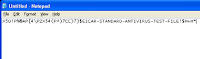
  • Then recopy the following character string in the Notepad:
X5O!P%@AP[4\PZX54(P^)7CC)7}$EICAR-STANDARD-ANTIVIRUS-TEST-FILE!$H+H*

  • Then save the file while clicking on File then Save as.
  • Unroll the “Save as type” list then select the option All files.
  • Add the name of file eicar.com in the zone File name. Choose the location where you want to save it (on Desktop) and then click on Save button.
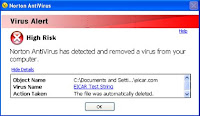
  • If your antivirus is correctly activated, it must then alert you instantaneously presence of the Eicar virus.
  • Then ask your antivirus to remove the file. In my case I had installed Norton Internet Security and file was recognize and removed automatically without any additional action from me.
If your antivirus does not see anything, than you have a problem. It could be because of two reasons: permanent protection is badly configured or there were some problems during antivirus installation. Then you have to read documentation of your software to correct this problem.

If the false virus is still not detected, you must then seriously think of changing anti-virus software.